- For the "Ribbon" and "Two Ribbons" options of the 3D Flying Objects screen saver, see 3D Flying Objects.
- For the interface element seen in built-in Windows programs and Microsoft Office, see Ribbon.
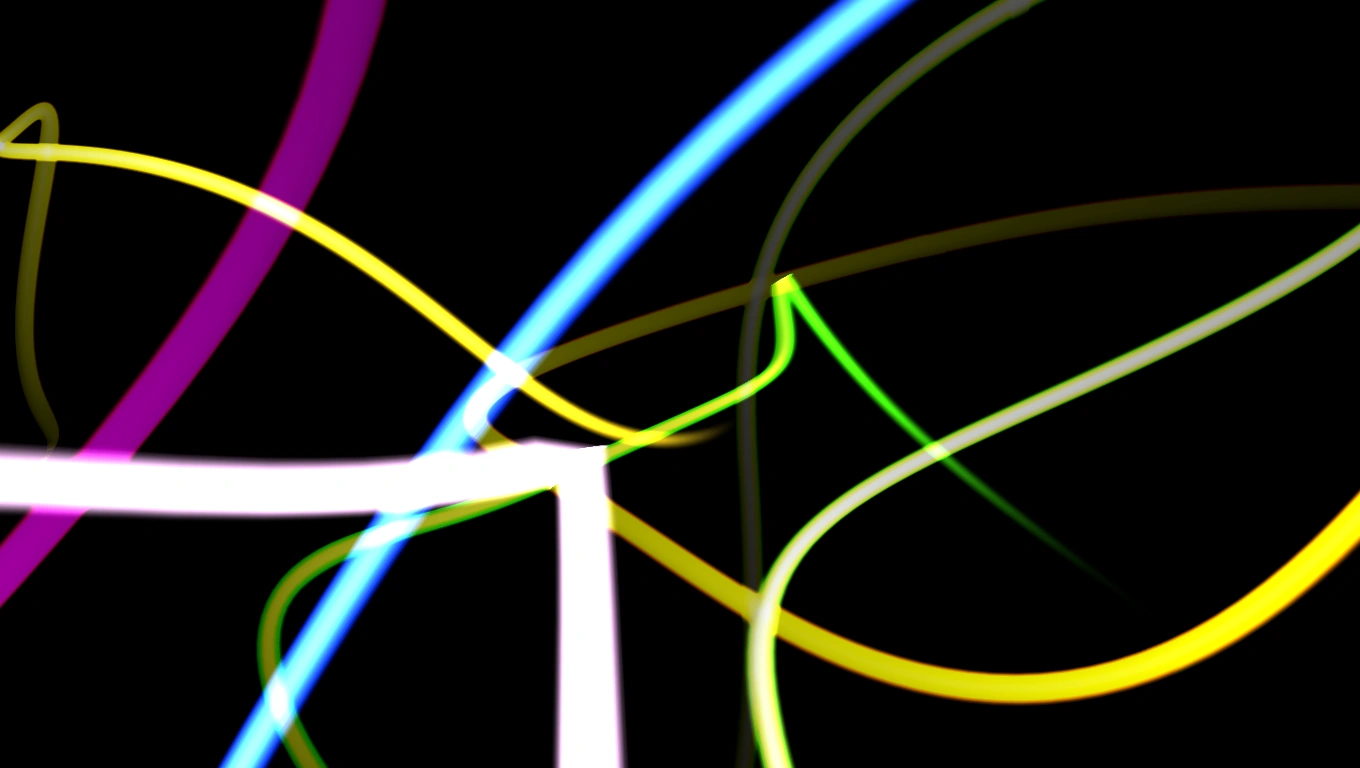

Screenshot of the Mystify screen saver.
Mystify is a screen saver included with every version of Microsoft Windows starting with Windows Vista. The screen saver's file name is "Ribbons.scr".
Description
Ribbons depicts a set of bright streaks of light (the "ribbons") flying indiscriminately across a black screen. Each ribbon leaves behind a trail matching its color and thickness. The ribbons often move outside the screen, and return within view after some time. Ribbons come in various colors, which are randomly set each time the screen saver starts. These can include: red, orange, yellow, chartreuse, green, spring green, cyan, azure, blue, violet, magenta, and rose.
Settings
Ribbons does not have a Settings interface enabled, and claims to lack options for the user to set if "Settings" is clicked in Screen Saver Settings. However, Ribbons actually has some settings which can be altered; the Registry Editor must be used to adjust these. Under the key "HKEY_CURRENT_USER\Software\Microsoft\Windows\CurrentVersion\Screensavers\Ribbons", the following four DWORD values can be created and set to adjust the behavior of Ribbons:
- Blur - Adjusts how the ribbons' trails work. If set to 0, all ribbons' trails will remain on the screen for the screen saver's duration, and will never fade away. If set to 1, all ribbons' trails will slowly fade away after a moment.
- NumRibbons - Adjusts how many flying ribbons are present. The number set directly corresponds to the number of ribbons that will be present. The lowest values result in few ribbons and thus fewer trails, while the highest values ensure that ribbons constantly populate the screen.
- RibbonWidth - Adjusts how thick the ribbons and their trails are. Decimal values up to 2139095040 will change the result. The lowest values result in very thin ribbons, while the highest values create ribbons that take up most of the screen space.
- SpanMultiMon - This option affects how the screen saver appears if multiple monitors are connected. If set to 0, the screen saver will run separately in each monitor. If set to 1, one instance of the screen saver will span all monitors.
Notes
- The file "Ribbons.scr.mui", located in folders Windows uses to sort text data for its built-in programs by language, contains programming for an unused Settings dialog for the Ribbons screen saver. The same is true of the other screen savers created by Stephen Coy for Windows Vista (Aurora, Bubbles, Mystify), in relation to their .mui files.