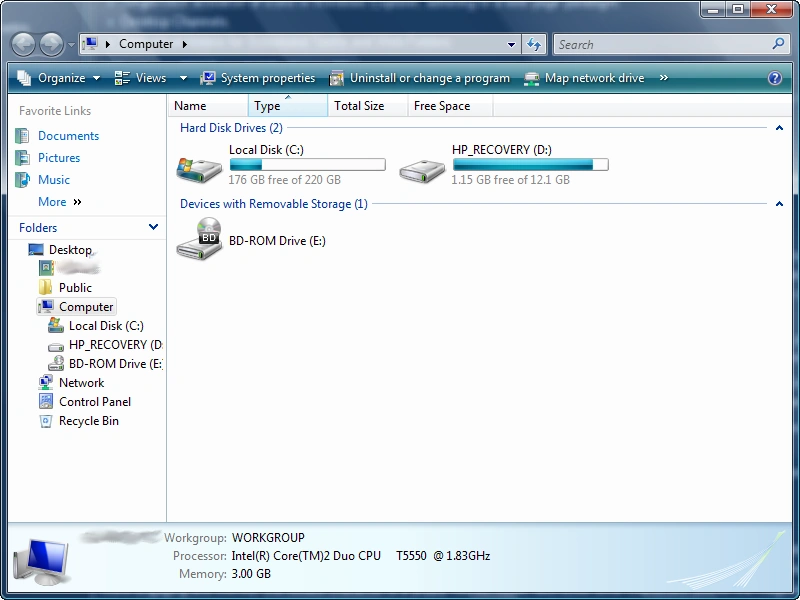

"Computer" in Windows Vista
This PC is a directory in Microsoft Windows that shows hard drives, optical drives, and other storage devices on a computer. It is the directory from which the user can find any file that is not on an external network device.
This PC can be renamed via the File Explorer or its desktop icon; its new name will be reflected across both areas of Windows. From Windows 95 to Windows XP, it was named My Computer by default. In Windows Vista and Windows 7, it was named Computer by default.
Features
The "This PC" window divides items into the following categories:
- File folders (in Windows 10)
- Hard Disk Drives
- Devices with Removable Storage
- Other
When no items are selected, the bottom panel shows the computer's name, workgroup, processor, and memory capacity. When a hard drive or removable drive is selected, the drive's space used, space free, total size, file system, and BitLocker status are shown.
For disc drives, the following information can be shown:
- Volume Label
- Optical drive info
- Disc label
- Disc size
- Disc type
- Optical drive status
Access
Start Menu
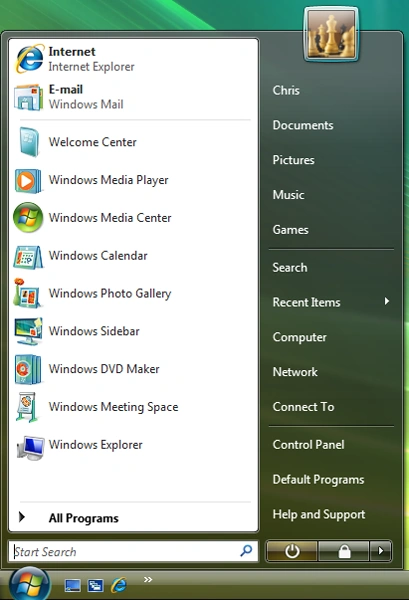

The Start Menu contains the "This PC" link
To access "This PC", go to the Start Menu and click on "This PC". When right-clicked, additional options appear:
- Manage opens Computer Management
- Map network drive... opens a window to let the user map a network drive.
- Disconnect network drive... opens a menu to let the user disconnect any network drives that are connected to the computer.
- Show on Desktop enables or disables the This PC special desktop icon.
- Properties opens the System information in the Control Panel.
Desktop
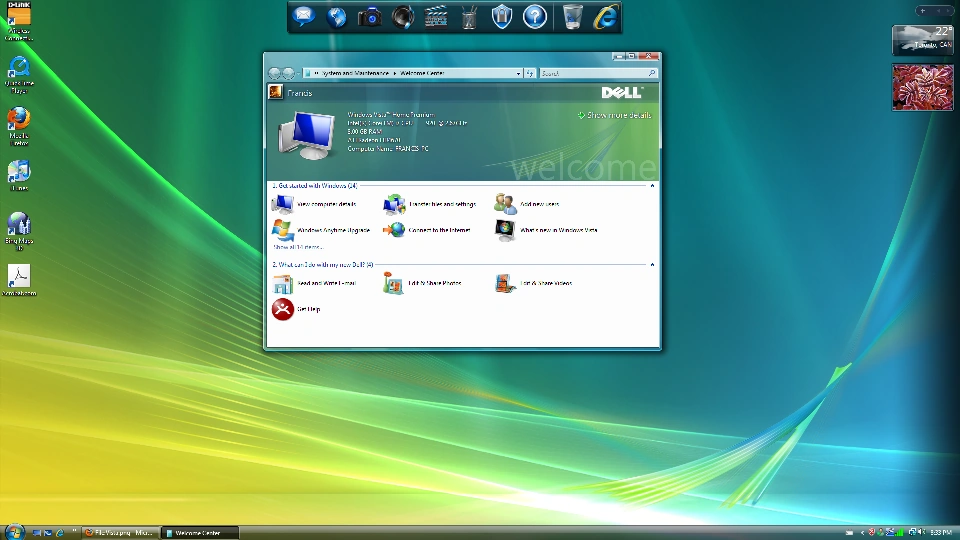

This PC can be accessed via the Desktop
This PC can be accessed by simply double-clicking on the icon "This PC" in the Desktop. When right-clicked, additional options appear:
- Manage opens Computer Management
- Map network drive... opens a window to let the user map a network drive.
- Disconnect network drive... opens a menu to let the user disconnect any network drives that are connected to the computer.
- Delete removes the icon from the desktop if the user confirms.
- Properties opens the System information in the Control Panel.
"This PC" is one of the special desktop icons, meaning its icon is not a Shortcut; instead, its icon is enabled via the Control Panel. Until Windows XP, it was enabled by default in all Windows installations; in later versions, however, some OEMs do enable the icon by default.
Windows Explorer
This PC can be accessed by going to the drop-down menu in File Explorer and selecting "This PC" from the list. When "Show all folders" is enabled, "This PC" is shown with all its subfolders.
Notes
- In Windows 7, renaming Computer via the Windows Explorer window or the Desktop will not immediately change how it appears in the Start menu. However, opening the rename input box from the Start menu will show the new name.