File Explorer (previously known as Windows Explorer) is a file manager application and default desktop environment that is included with releases of the Windows operating system from Windows 95 onwards. It provides a graphical user interface for accessing the file systems, as well as user interface elements such as the taskbar and desktop.
The application was renamed from "Windows Explorer" to "File Explorer" in Windows 8; however, the old name of "Windows Explorer" can still be seen in the Task Manager
Overview
Windows Explorer debuted in Windows 95 as a replacement for File Manager, which came with all versions of Windows 3.x operating systems. It could be accessed by double-clicking the new My Computer desktop icon, or launched from the new Start Menu (which succeeded the earlier Program Manager). There is also a shortcut key combination: Windows Key + E. Successive versions of Windows (and in some cases, Internet Explorer) introduced new features and capabilities, removed other features, and generally progressed Explorer from being a simple file system navigation tool into a task-based file management system.
While the term "Windows Explorer" is most commonly used to describe the file management aspect of the operating system, the Explorer process also houses the operating system's search functionality and File Type associations (based on filename extensions), and is responsible for displaying the desktop icons and wallpaper, the Start Menu, the taskbar, and the Control Panel. Collectively, these features are known as the Windows Shell.
File Explorer is the default user interface for accessing and managing the file systems, but it is possible to perform such tasks on Windows without File Explorer. For example, the File ▸ Run menu option in Task Manager on Windows NT or later functions independently of File Explorer, as do commands run within a command prompt window.
After a user logs in, the explorer process is created by the userinit process. Userinit performs some initialization of the user environment (such as running the login script and applying group policies) and then looks in the registry at the Shell value and creates a process to run the system-defined shell – by default, Explorer.exe. Then Userinit exits. This is why Explorer.exe is shown by various process explorers with no parent – its parent has exited.
History and evolution
- See also: History of Microsoft Windows
In 1995, Microsoft first released test versions of a shell refresh, named the Shell Technology Preview, and often informally referred to as "NewShell". The update was designed to replace the Windows 3.x Program Manager/File Manager-based shell with Windows Explorer. The release provided capabilities similar to those of the Windows "Chicago" (codename for Windows 95) shell during its late beta phases; however, it was intended to be nothing more than a test release. There were two public releases of the Shell Technology Preview, made available to MSDN and CompuServe users: May 26, 1995, and August 8, 1995. Both held Windows Explorer builds of 3.51.1053.1. The Shell Technology Preview program never saw a final release under NT 3.51. The entire program was moved across to the Cairo development group, who finally integrated the new shell design into the NT code with the release of NT 4.0 in July 1996.
Windows 95
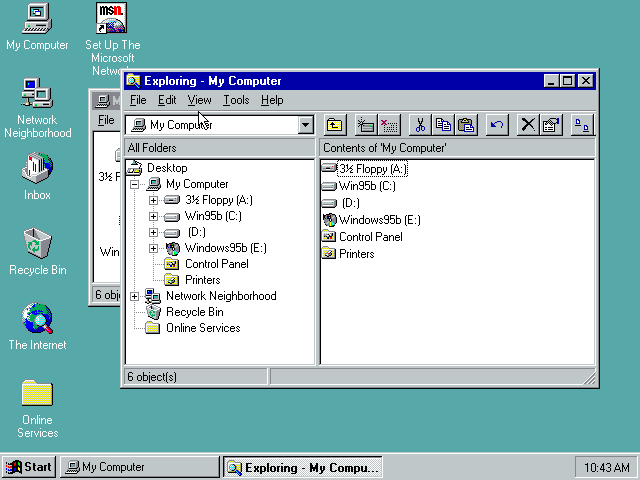

Windows Explorer in Windows 95.
Windows Explorer presents a browsing mode where each folder opened would open in a new window, in a spatial file manager fashion. Folder sizes and views are automatically set according to the contents of the newly opened folder. For example, a folder with two files opens with a smaller window than that of a folder with ten files. In addition, when there are hundreds of files in a folder, the folder would automatically display in "List" view. This browsing mode is reminiscent of the Program Manager of Windows 3.x.
Windows 95 was the closest Windows Explorer would come to being a spatial file manager in the same vein as the Macintosh Finder. In later versions of Windows Explorer, most of this functionality is disabled by default, favoring instead a "single-window" navigation design, a philosophy that later gained traction in Mac OS X.
Windows 98 and Windows Desktop Update
With the release of the Windows Desktop Update (packaged with Internet Explorer 4 as an optional component, and included in Windows 98), Windows Explorer became based on Internet Explorer technology, most notably with the addition of navigation arrows (back and forward) for moving between recently visited directories, as well as Internet Explorer's Favorites menu. At the time, these changes raised antitrust concerns about the incorporation of what was seen as an application feature, but this feature has since been emulated by most other file browsers.
An address bar was also added to Windows Explorer, where a user could type in directory paths directly and be taken to that folder. It also operated as a URL bar for Internet addresses; web pages would open in the main portion of the window.
Another feature that was based on Internet Explorer technology was customized folders. Such folders contained a hidden web page that controlled the way the Windows Explorer displayed the contents of the folder. This feature proved to have security vulnerabilities due to its reliance on ActiveX objects and scripting, and was removed with the introduction of Windows XP.
Windows 2000 and Windows Me
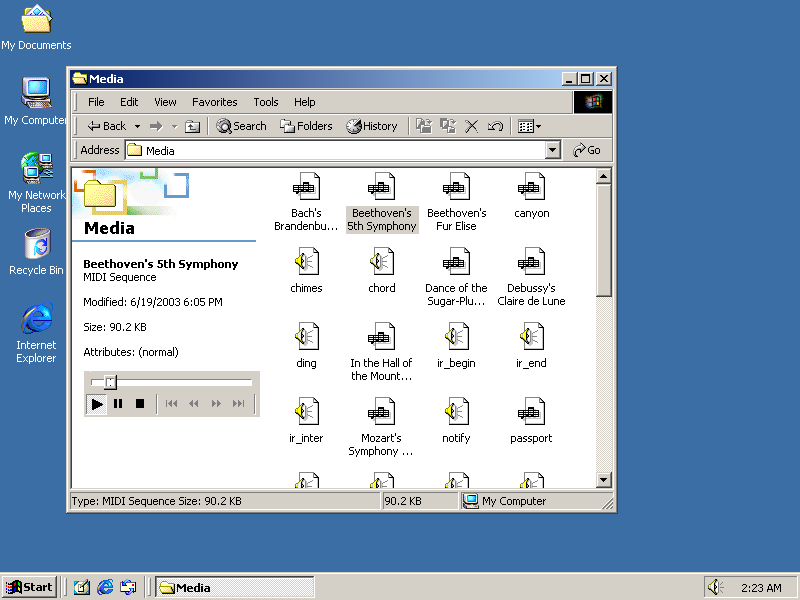

Windows Explorer in Windows 2000 and Windows Me.
The "Web-style" folders view, with the left Explorer pane displaying details for the object currently selected, is turned on by default. For certain file types, such as pictures and media files, a preview is also displayed in the left pane. The Windows 2000 Explorer featured an interactive media player as the previewer for sound and video files. However, such a previewer can be enabled in Windows ME through the use of folder customization templates. Windows Explorer in Windows 2000 and Windows ME allows for custom thumbnail previewers and tooltip handlers. The default file tooltip displays file title, author, subject, and comments; this metadata may be read from a special NTFS stream, if the file is on an NTFS volume, or from a COM Structured Storage stream, if the file is a structured storage document. All Microsoft Office documents since Office 95 make use of structured storage, so their metadata is displayable in the Windows 2000 Explorer default tooltip. File shortcuts can also store comments, which are displayed as a tooltip when the mouse hovers over the shortcut.
The right-hand pane, which usually just lists files and folders, can also be customized. For example, the contents of the system folders aren't displayed by default; instead shown in the right pane a warning to the user that modifying the contents of the system folders could harm their computer. It's possible to define additional Explorer panes by using DIV elements in folder template files. This feature was abused by computer viruses that employed malicious scripts, Java applets, or ActiveX controls in folder template files as their infection vector. Two such viruses are VBS/Roor-C and VBS.Redlof.a.
Other Explorer UI elements that can be customized include columns in "Details" view, icon overlays, and search providers: the new DHTML-based search pane is integrated into Windows 2000 Explorer, unlike the separate search dialog found in all previous Explorer versions.
Search capabilities were added, offering full-text searches of documents, with options to filter by date (including arbitrary ranges like "modified within the last week"), size, and file type. The Indexing Service has also been integrated into the operating system, and the search pane built into Explorer allows searching files indexed by its database. The ability to customize the standard buttons was also added.
Windows XP and Windows Server 2003
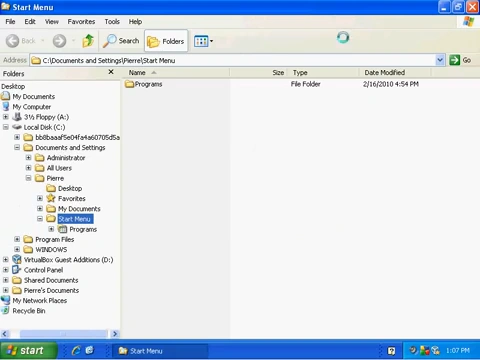

Windows Explorer in Windows XP.
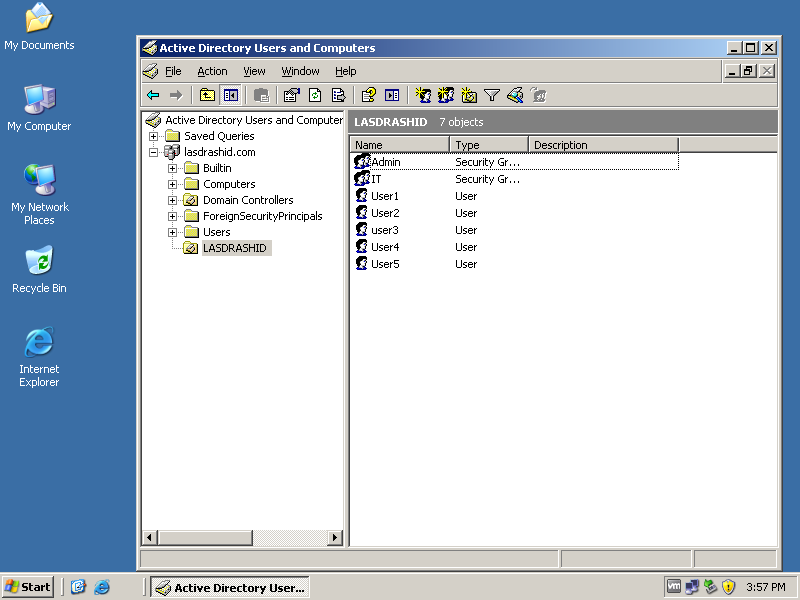

Windows Explorer in Windows Server 2003.
Windows Explorer has undergone significant changes in Windows XP, both visually and functionally. Microsoft focused especially on making Explorer more discoverable and task-based, as well as adding a number of features to reflect the growing use of a computer as a "digital hub".
Task Pane
One immediately obvious change is the task pane, which is displayed on the left-hand side of the window instead of the traditional folder tree view. The task pane presents the user with a list of common actions and destinations that are relevant to the current directory or file(s) selected. For instance, when in a directory containing mostly pictures, a set of "Picture tasks" is shown, offering the options to display these pictures as a slide show, to print them out, or to go online to order prints. Conversely, a folder containing music files would offer options to play those files in a media player or to go online to purchase music.
Every folder also has "File and Folder Tasks", offering options to create new folders, share a folder on the local network, publish files or folders to a website, and other common tasks like copying, renaming, moving, and deleting files or folders. File types that have identified themselves as being printable also have an option listed to print the file.
Underneath "File and Folder Tasks" is "Other Places", with links to other common locations such as "My Computer", "Control Panel", and "My Documents". These also change depending on what folder the user was in, leading to some criticism of Microsoft for not being consistent in displaying navigation choices.
Underneath "Other Places" is a "Details" pane which gives additional information—typically file size and date, but depending on the file type, a thumbnail preview, author, image dimensions, or other details.
The "Folders" button on the Windows Explorer toolbar toggles between the traditional tree view of folders, and the task pane. Users can get rid of the task pane or restore it using the sequence: Tools - Folder Options - General - Show Common Tasks/Use Windows Classic Folders.
Search companion
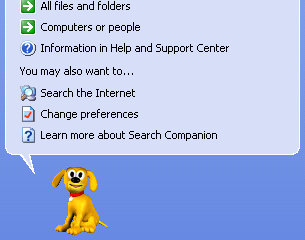

Windows Explorers default Search Companion, Rover, in Windows XP.
Windows XP's search capabilities were improved somewhat over previous versions of Windows, though in practice, very little of its capability was used owing to a combination of privacy concerns and an interface that provoked varying degrees of dislike and ridicule. Microsoft introduced animated "Search Companions" in an attempt to make searching more engaging and friendly; the default character is a puppy named Rover, with three other characters (Merlin the magician, Earl the surfer, and Courtney) also available. These search companions bear a great deal of similarity to Microsoft Office's Office Assistants, even incorporating "tricks" and sound effects.
The search capability itself is fairly similar to Windows 2000 and Windows Me, with one major addition: Search can also be instructed to search only files that are categorically "Documents" or "Pictures, music and video"; this feature is noteworthy largely because of how Windows determines what types of files can be classified under these categories. In order to maintain a relevant list of file types, Windows Explorer connects to Microsoft and downloads a set of XML files that define what these file types are. While harmless in itself, this feature caught the attention of a number of privacy advocates and users with firewall software installed, who felt Windows didn't have to connect to Microsoft's servers whenever a local search was performed.
Image handling
Windows XP improves image preview in Explorer by offering a Filmstrip view. "Back" and "Previous" buttons facilitate navigation through the pictures, and a pair of "Rotate" buttons offer 90-degree clockwise and counter-clockwise (lossy) rotation of images. Aside from the Filmstrip view mode, there is a 'Thumbnails' mode, which displays thumbnail-sized images in the folder. A Folder containing images will also show thumbnails of four of the images from that folder overlaid on top of a large folder icon.
Web publishing
Web sites that offer image hosting services can be plugged into Windows Explorer, which the user can use to select images on their computer, and have them uploaded correctly without dealing with comparatively complex solutions involving FTP or web interfaces.
Other changes
- Explorer gained the ability to understand the metadata of a number of types of files. For example, with images from a digital camera, the Exif information can be viewed, both in the Properties pages for the photo itself, as well as via optional additional Details View columns.
- A Tile view mode was added, which displays the file's icon in a larger size (48 × 48), and places the file name, descriptive type, and additional information (typically the file size for data files, and the publisher name for applications) to the right.
- The toolbars can be locked to prevent them from accidentally being moved. This same capability was also added to the taskbar at the bottom of the screen, as well as to Internet Explorer's toolbars.
- Windows Explorer also gained the ability to burn CDs and DVD-RAM discs in Windows XP.
Windows Explorer in Windows Server 2003 contains all the same features as Windows XP, but the task panes and search companion are disabled by default.
Windows Vista and Windows Server 2008
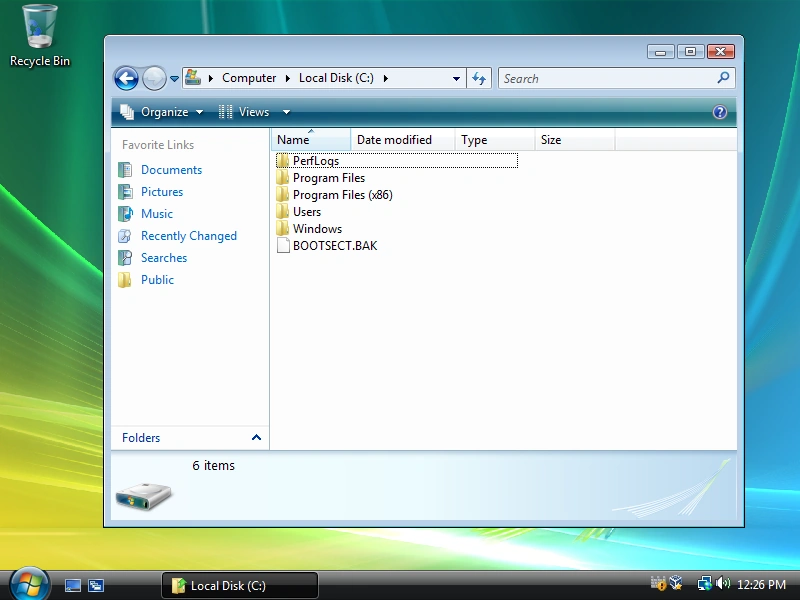

Windows Explorer in Windows Vista.
Search, organizing and metadata
Windows Explorer includes significant changes from previous versions of Windows such as improved filtering, sorting, grouping, and stacking. Combined with integrated desktop search, Windows Explorer allows users to find and organize their files in new ways, such as Stacks. The "Stacks" view groups files according to the criterion specified by the user. Stacks can be clicked to filter the files shown in Windows Explorer. There is also the ability to save searches as virtual folders or Search Folders. A Search Folder is simply an XML file that stores the query in a form that can be used by the Windows search subsystem. When accessed, the search is executed, and the results are aggregated and presented as a virtual folder.
Windows Explorer also contains modifications in the visualization of files on a computer. A new addition to Windows Explorer in Vista is the Details pane, which displays metadata and information relating to the currently selected file or folder. The Details pane will also display a thumbnail of the file or an icon of the file type if the file does not contain visual information. Furthermore, different imagery is overlaid on thumbnails to give more information about the file, such as a picture frame around the thumbnail of an image file, or a filmstrip on a video file. Thumbnails can be zoomed in on.
The Details pane also allows for the change of some textual metadata, such as 'Author' and 'Title', in files that support them within Windows Explorer. A new type of metadata called tags allows users to add descriptive terms to documents for easier categorization and retrieval. Some files support open metadata, allowing users to define new types of metadata for their files. Out of the box, Windows Vista supports Microsoft Office documents and most audio and video files. Support for other file types can, however, be added by writing specialized software to retrieve the metadata at the shell's request. Metadata stored in a file's alternate (secondary) stream only on NTFS volumes cannot be viewed and edited through the 'Summary' tab of the file's properties anymore. Instead, all metadata is stored inside the file, so that it will always travel with the file and not be dependent on the file system. However, initially, users will be able to add metadata to only a few file types.
Layout and icons
Windows Explorer in Windows Vista also introduces a new layout. The Task Panes from Windows XP are replaced with a toolbar on top and a Favorites pane on the left. The Favorites pane contains commonly accessed folders and prepopulated Search folders. Seven different views are available to view files and folders, namely, List, Details, Small icons, Medium icons, Large icons, Extra large icons, or Tiles. Automatic folder type discovery automatically detects the contents of a folder and displays the correct detail settings. It is possible to change the layout of the Explorer window by using the Organize button. Users can select whether to display Classic Menus, a Search Pane, a Preview Pane, a Reading Pane, and/or the Navigation Pane. The Preview pane allows for previewing files (viewing documents and playing media files) in addition to the Details pane. Also, Explorer can show a preview for any image format if the necessary codec for the format is installed in the Windows Imaging Component.
The address bar has been replaced by a breadcrumbs bar for easier navigation. It shows the full path to the current location. Clicking any location in the path hierarchy takes the user to that level, instead of repeatedly pressing the Back button. This is similar to what is possible in Windows XP by pressing the small down-arrow next to "Back" and selecting any folder from a list of previously accessed folders. It is also possible to navigate to any subfolder of the current folder using the arrow to the right of the last item, or to click in the space to the right of this to copy or edit the path manually. As with many other Microsoft-made Windows Vista applications, the menu bar is hidden by default. Pressing the Alt key makes the menu bar appear.
Check boxes in Windows Explorer allow the selection of multiple files. Free and used space on all drives is shown in horizontal indicator bars. Icons of various sizes are supported - 16 x 16, 24 x 24, 32 x 32, 48 x 48, 64 x 64, 96 x 96, 128 x 128 and 256 x 256. Windows Explorer can zoom the icons in and out using a slider or by holding down the Ctrl key and using the mouse scroll wheel.
Other changes
Also, with the release of Windows Vista and Windows Internet Explorer 7 for Windows XP, Windows Explorer is separated from Internet Explorer, once again becoming separate applications as they were in Windows 95. (Note that the applications have actually been separate the entire time, although they shared some components and were able to emulate the other application, giving the appearance of being a single application.) In Windows Vista (and in Windows XP as well if IE7 is installed), Windows Explorer no longer displays web pages, and IE7 does not support use as a file manager, although one will separately launch the other as necessary.
When moving or copying files from one folder to another, if two files have the same name, an option is now available to rename the file; in previous versions of Windows, the user was prompted to choose either a replacement or cancel moving the file. Also, when renaming a file, Explorer only highlights the filename without selecting the extension.
Windows Explorer can also now burn data on DVDs (DVD±R, DVD±R DL, DVD±R RW) in addition to CDs and DVD-RAM using IMAPI 2.0.
In case a file is in use by another application, Windows Explorer informs users to close the application and retry the file operation. Also, a new interface 'IFileIsInUse' is introduced into the API, which developers can use to let other applications switch to the main window of the application that has the file open or simply close the file from the "File In Use" dialog. If the running application exposes these operations by means of the IFileInUse interface, Windows Explorer, upon encountering a locked file, allows the user to close the file or switch to the application from the dialog box itself.
Removed and changed features
The ability to customize the layout and buttons on the toolbars has been removed in Windows Vista's Explorer, as was the ability to add a password to a zip file (compressed folder). The Toolbar button in Explorer to go up one folder from the current folder has been removed. Although available from the menus, toolbar buttons for Cut, Copy, Paste, Undo, Delete, Properties, and some others are no longer available. The Menu Bar is also hidden by default, but is still available by pressing the Alt key or changing its visibility in the layout options. Several other features are removed, such as showing the size on the status bar without selecting items, storing metadata in NTFS alternate data streams, the IColumnProvider interface, which allowed the addition of custom columns to Explorer, and folder background customization using desktop.ini.
The ability to right-click a folder and hit "Search" was removed in Windows Vista Service Pack 1. Users must open the folder they wish to search in and enter their keywords in the search field located on the top right corner of the window. Alternatively, users can specify other search parameters through the "Advanced Search" UI, which can be accessed by clicking on the Organize Bar and selecting Search Pane under the Layout submenu. Pressing F3 also opens the "Advanced Search" interface.
Windows 7 and Windows Server 2008 R2
Libraries
Windows Explorer in Windows 7 and Windows Server 2008 R2 supports libraries, virtual folders described in a .library-ms file that aggregates content from various locations — including shared folders on networked systems if the shared folder has been indexed by the host system — and presents them in a unified view. Searching in a library automatically federates the query to the remote systems, in addition to searching on the local system, so that files on the remote systems are also searched. Unlike search folders, Libraries are backed by a physical location, which allows files to be saved in the libraries. Such files are transparently saved in the backing physical folder. The default save location for a library may be configured by the user, as can the default view layout for each library. Libraries are generally stored in the "libraries" special folder, which allows them to be displayed on the navigation pane.
By default, a new user account in Windows 7 contains four libraries, for different file types: Documents, Music, Pictures, and Videos. They are configured to include the user's profile folders for these respective file types, as well as the computer's corresponding Public folders.
In addition to aggregating multiple storage locations, Libraries enable Arrangement Views and Search Filter Suggestions. Arrangement Views allow users to pivot their views of the library's contents based on metadata. For example, selecting the "By Month" view in the Pictures library will display photos in stacks, where each stack represents a month of photos based on the date they were taken. In the Music library, the "By Artist" view will display stacks of albums from the artists in their collections, and browsing into an artist stack will then display the relevant albums.
Search Filter Suggestions are a new feature of the Windows 7 and Windows Server 2008 R2 Explorer's search box. When the user clicks in the search box, a menu shows up below it, showing recent searches as well as suggested Advanced Query Syntax filters that the user can type. When one is selected (or typed in manually), the menu will update to show the possible values to filter by for that property, and this list is based on the current location and other parts of the query already typed. For example, selecting the "tags" filter or typing "tags:" into the search box will display the list of possible tag values, which will return search results.
The metadata written within the file, implemented in Vista, is also utilized in Windows 7. This can sometimes lead to long wait times when displaying the contents of a folder. For example, if a folder contains many large video files totaling hundreds of gigabytes, and the Window Explorer pane is in Details view mode showing a property contained within the metadata (for example, Date, Length, Frame Height), Windows Explorer might have to search the contents of the whole file for the metadata. Some damaged files can cause a prolonged delay as well. This is due to metadata information being able to be placed anywhere within the file, beginning, middle, or end, necessitating a search of the whole file. Lengthy delays also occur when displaying the contents of a folder with many different types of program icons. The icon is contained in the metadata. Some programs cause the activation of a virus scan when retrieving the icon information from the metadata, hence producing a lengthy delay.
Arrangement Views and Search Filter Suggestions are database-backed features that require that all locations in the Library be indexed by the Windows Search service. Local disk locations must be indexed by the local indexer, and Windows Explorer will automatically add locations to the indexing scope when they are included in a library. Remote locations can be indexed by the indexer on another Windows 7 and Windows Server 2008 R2 machine, on a Windows machine running Windows Search 4 (such as Windows Vista or Windows Home Server), or on another device that implements the MS-WSP remote query protocol.
Federated search
Windows Explorer also supports federating search to external data sources, such as custom databases or web services, that are exposed over the web and described via an OpenSearch definition. The federated location description (called a Search Connector) is provided as a .osdx file. Once installed, the data source becomes queryable directly from Windows Explorer. Windows Explorer features, such as previews and thumbnails, work with the results of a federated search as well.
Other changes
- Windows 7 and Windows Server 2008 R2 support showing icons in the context menu and creating cascaded context menus with static verbs in submenus using the Registry instead of a shell extension.
- The search box in the Explorer window and the address bar can be resized.
- Certain folders in the navigation pane can be hidden to reduce clutter.
- Progress bars and overlay icons on an application's button on the taskbar.
- Content view, which shows thumbnails and metadata.
- Buttons to toggle the preview pane and create a new folder.
Removed or changed features
In Windows 7, several features have been removed from Windows Explorer, including the collapsible folder pane, overlay icon for shared items, remembering individual folder window sizes and positions, free disk space on the status bar, icons on the command bar, ability to disable Auto Arrange and Align to Grid, sortable column headings in other views except details view, ability to disable full row selection in details view, automatic horizontal scrolling and scrollbar in the navigation pane and maintaining selection when sorting from the Edit menu.
Windows 8 and Windows Server 2012
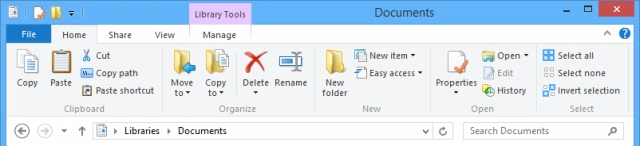

The new File Explorer with ribbon in Windows 8.
The file manager on Windows 8 and Windows Server 2012 is renamed "File Explorer" and introduces new features such as a redesigned interface incorporating a ribbon toolbar, and a redesigned file operation dialog that displays more detailed progress and allows for file operations to be paused and resumed. The details pane from Windows Vista and 7 was removed and replaced with a narrower pane with no icons and fewer detail columns; however, other details are displayed by hovering over the file's name.
Windows 10 and Windows Server 2016
File Explorer's icons were redesigned to fit with the more flat and simplified theming of Windows 10 as a whole. The window border padding is thinner than previous versions. Windows 10 Creators Update and later versions come with a new Universal File Explorer (also known as the UWP File Explorer). Although hidden, it can be opened by creating a shortcut pointing to "explorer shell:AppsFolder\c5e2524a-ea46-4f67-841f-6a9465d9d515_cw5n1h2txyewy!App". A Dark mode was added to the software in 2018, to match similar themes available for other built-in Windows applications.
Windows 10, version 1809 and Windows Server 2019
Dark mode support was added to File Explorer in Windows 10, version 1809, and Windows Server 2019. The Universal File Explorer also includes new features. Windows Search and OneDrive have been integrated into File Explorer's search feature in Windows 10, version 1809.
Windows 11
In Windows 11, File Explorer had undergone significant UI changes, with the Ribbon Interface dating back to Windows 7 being reworked into a command bar. It also follows the new Fluent Design System by adding translucency, shadows, and rounded geometry. In March 2022, Microsoft introduced advertisements into File Explorer, but later backtracked, saying that these were "not intended to be published externally," following significant negative media coverage.
On April 5, 2022, Microsoft announced it would be adding tabs, favorites, and a new homepage to File Explorer. These features were eventually added via an update to Windows 11 on October 18, 2022.
On September 21, 2023, Microsoft announced it would be adding a modern home page, address bar, search experience, and details pane, along with an updated gallery pane. This update was released to most users of Windows 11 via an enablement package to Windows 11, 22H2. The full release came out with the full release of Windows 11 23H2. It is also now based on XAML technology, rather than the former Win32 technology.
References
See also
External links
- Find and open File Explorer at Microsoft Support
- File Explorer at Wikipedia
 |
Wikipedia
|
|---|